
Get started in five steps
Bulwark scans your dev machine for risky AI-agent settings, MCP servers, leaked keys, plain-text credentials and unsafe package-manager configs. This page takes you from install to a fixed problem in about ten minutes.
Screenshots on this page use sample data.
1. Install
Pick one:
- Desktop app: get the package for your system from Download, install it, and open Bulwark.
- Command line only: install
bulwarkctlfrom the same page. Every step below has a command.
Bulwark needs no account and no setup. It works offline.
2. Run your first scan
Open the app. The first screen tells you what will happen. Choose Start the first scan.
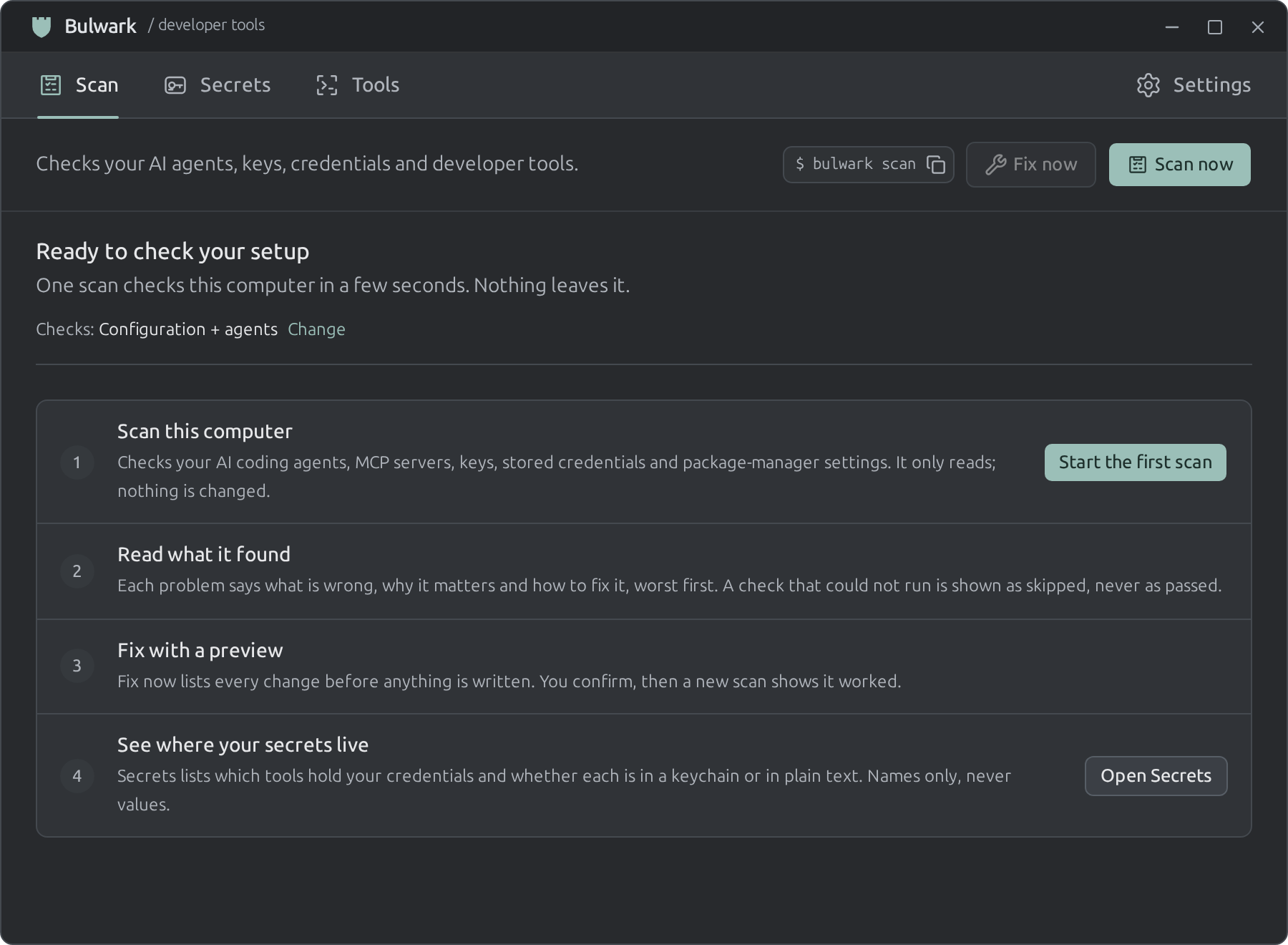
The scan only reads. It checks, in a few seconds:
| What | Examples |
|---|---|
| AI coding agents | Agents allowed to run any command, hooks a cloned repository can trigger, MCP servers that auto-start, invisible text hidden in instruction files |
| Leaked keys | An API key pasted into an agent session or an instruction file |
| Stored credentials | A long-lived AWS key on disk, tokens in ~/.npmrc, secrets exported from ~/.zshrc, keys saved in your shell history |
| Developer tools | Git or npm with certificate checks off, npm running install scripts from any package, npm, bun or uv installing versions published minutes ago |
| The computer itself | SSH settings, exposed services, startup programs, file permissions |
From a terminal:
bulwarkctl scan        # this computer
bulwarkctl ai scan     # AI agents and keys in their files
3. Read a finding
Findings are grouped by what they protect, worst first. Open one to see what is wrong, why it matters and how to fix it.
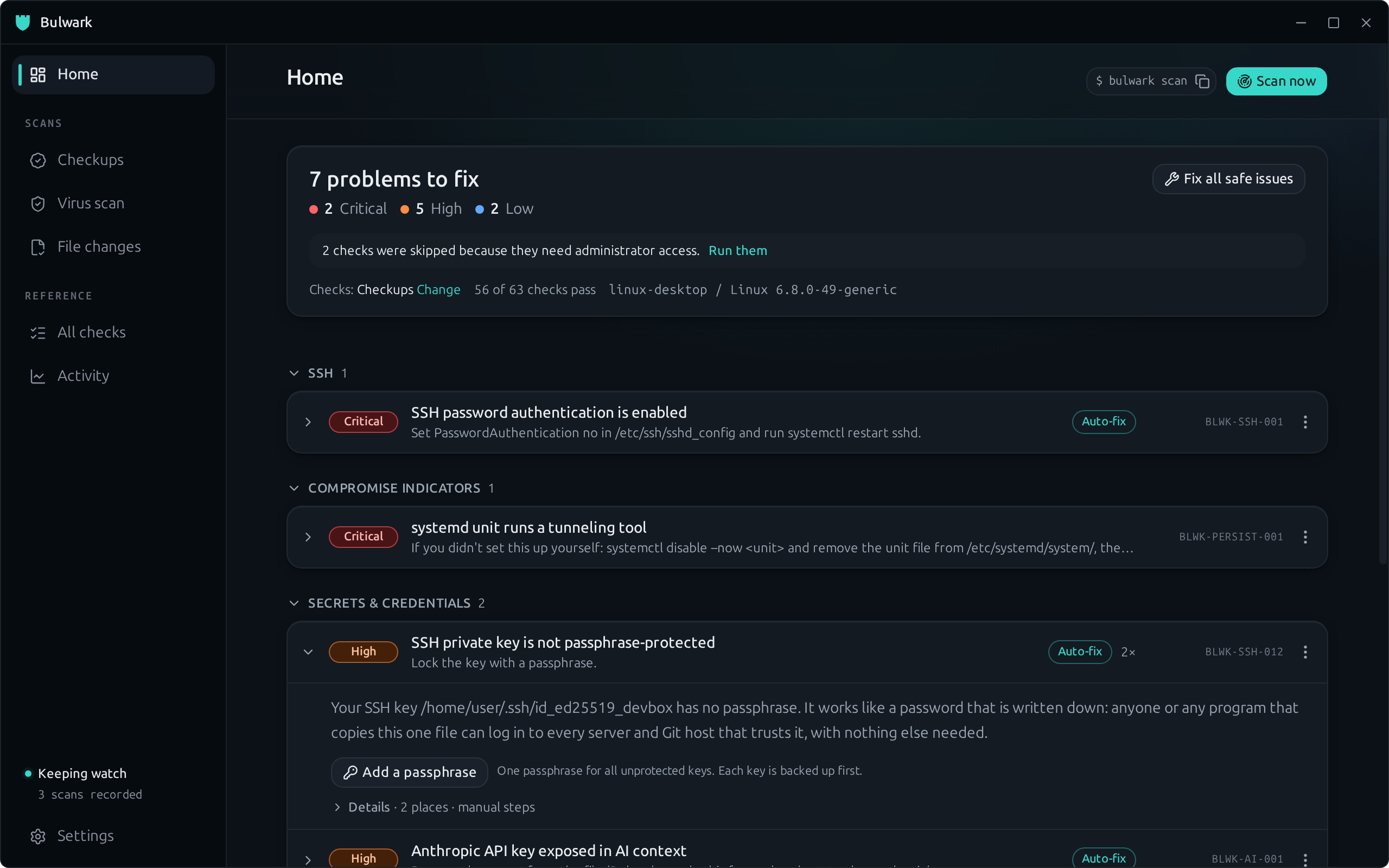
Three things to know:
- Critical and High are worth fixing today. Low items are suggestions and sit folded at the bottom.
- A check that could not run (for example, one that needs your administrator password) is shown as skipped. It is never counted as passed. Choose Run them to finish those checks.
- Not relevant to you? Open the ⋮ menu on a finding to ignore that one place or turn the whole check off. Bulwark asks for a reason and keeps a record. See Choosing what Bulwark checks.
4. Fix with a preview
Choose Fix now, next to Scan now. Bulwark lists every file and setting it would change. Nothing is written yet.
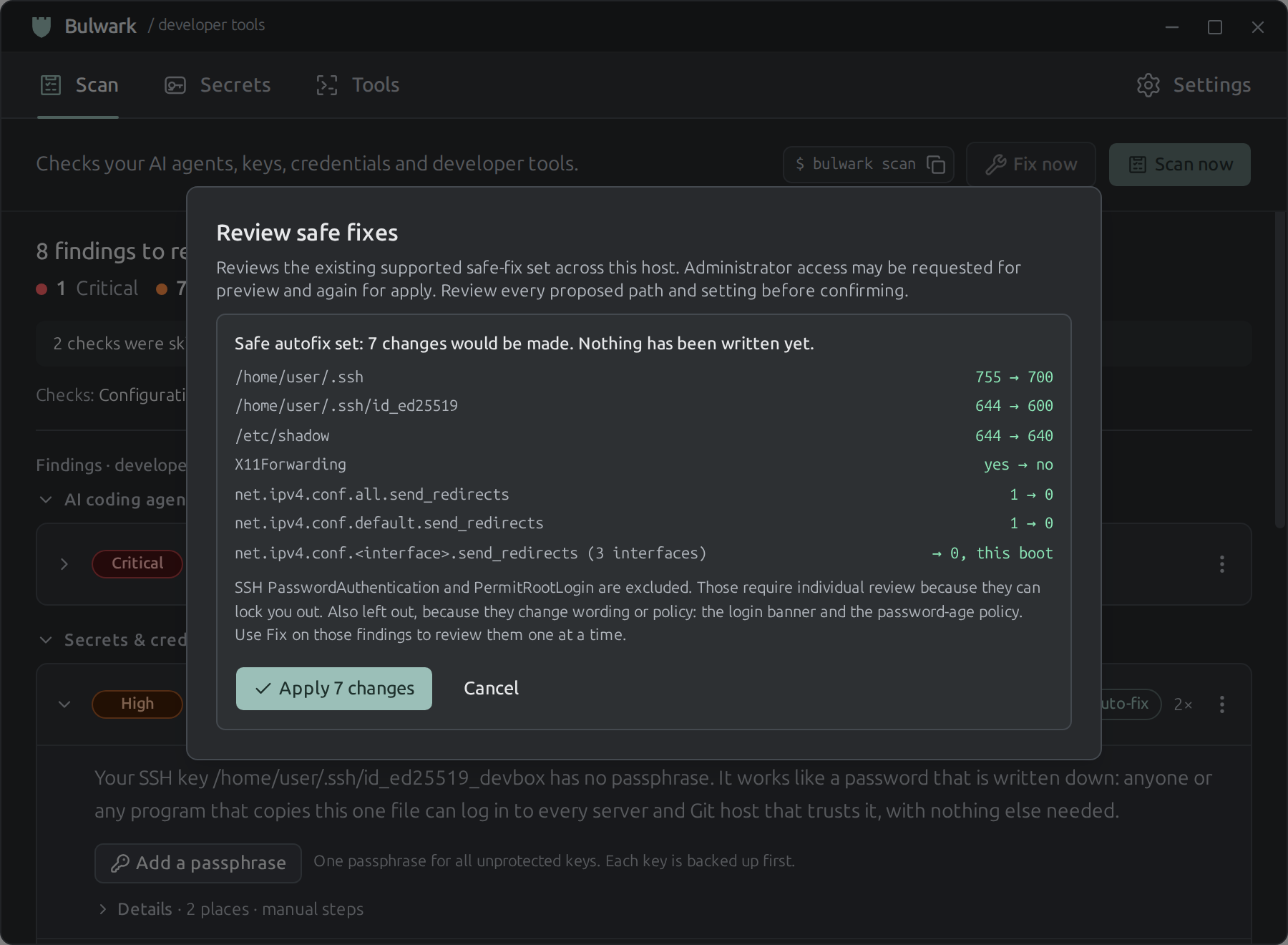
Read the list, then Apply or Cancel. Some fixes ask for your administrator password. When it finishes, Bulwark scans again so you can see the finding is gone.
Some problems cannot be fixed by a program, such as a leaked API key: you have to revoke it where it was issued. For those, the finding gives you the steps. Changes that could lock you out of a server (turning off SSH passwords, for example) are never applied in bulk; you review them one at a time.
From a terminal, every fix previews until you add --apply:
bulwarkctl fix list          # what can be fixed here
bulwarkctl fix all           # preview
bulwarkctl fix all --apply   # do it
fix all applies the changes that cannot surprise you: file permissions, SSH settings that cannot lock you out, and kernel network settings. The login banner and password-ageing fixes change wording and policy, so it lists them and you run them by name.
More in Fixing findings.
5. See where your secrets live
Open Secrets. The first time, Bulwark adds a tab for each tool it finds on your computer: AWS, Docker, Git, GitHub CLI, npm, PyPI, Kubernetes and others. The Inventory tab puts them in one list.
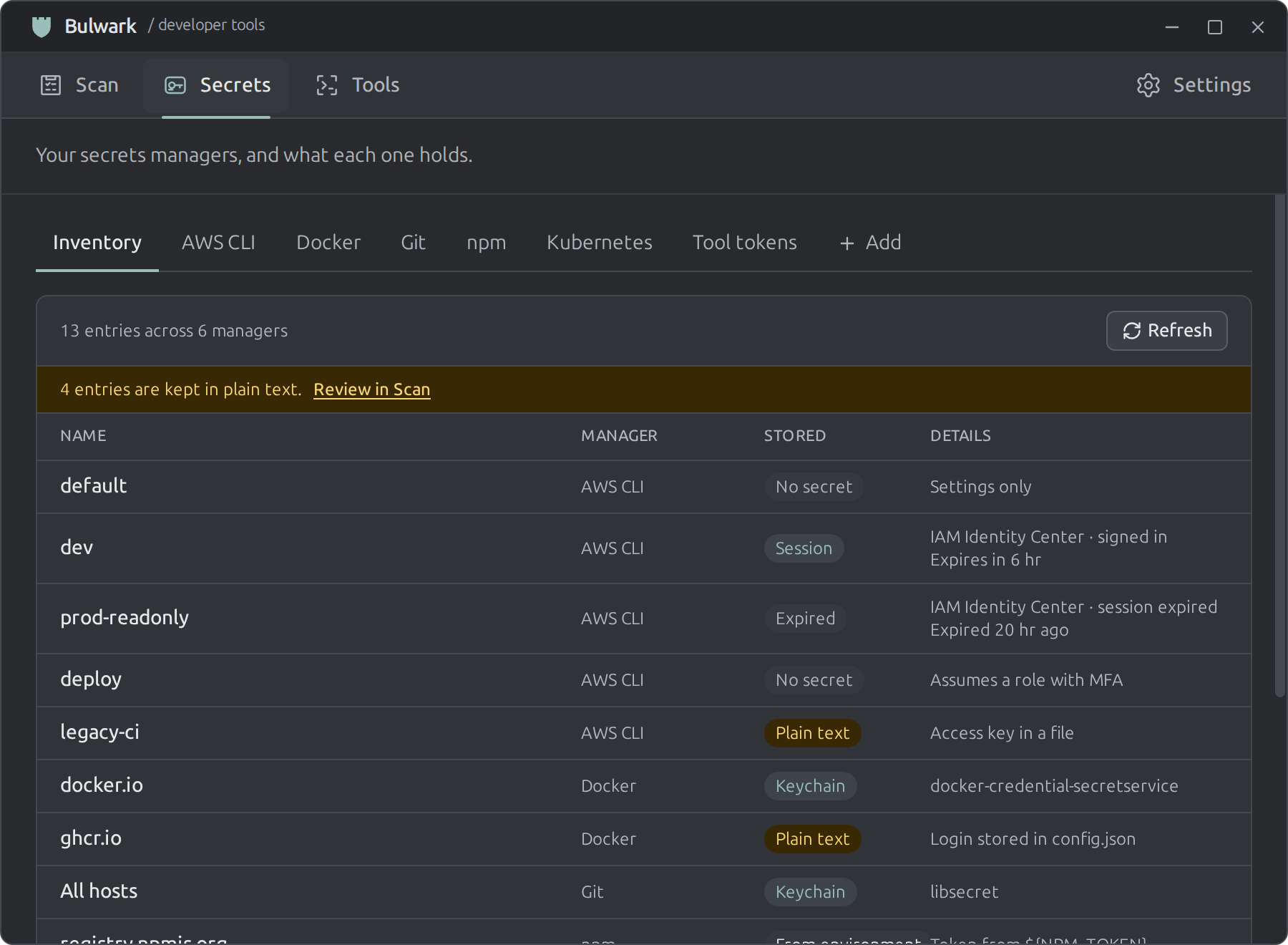
Each row shows a name and where it is stored. Bulwark never reads, shows or copies the secret itself.
- Keychain or Session: good. The secret is protected by your system or expires on its own.
- Plain text: the secret sits in a readable file. Choose Review in Scan to see the finding and its fix.
More in Secrets.
Keep it that way
- Check automatically. In Settings → Monitoring, Bulwark re-runs its checks on a timer and tells you when something new appears.
- Let your AI agent check itself.
bulwarkctl agent installteaches Claude Code, Codex, Cursor and others to run Bulwark when you ask "is this repo safe?". See AI agents. - Check your servers. Add a machine under Tools → Remote hosts to scan it over the SSH you already use. See Monitoring other machines.
- Check a pull request.
bulwarkctl ai scan --target .exits non-zero when it finds a problem, so it works in CI. See the command line.