
Monitoring other machines
Bulwark can keep watch over your servers, home-lab boxes and other workstations, not only the computer it runs on — Linux, macOS or Windows. It does this without an agent: on a schedule, it opens an SSH connection with your own access, runs its checks there, brings the results home and leaves. Between scans nothing of Bulwark runs on, or listens on, a monitored machine. A Linux server needs nothing installed at all; a Mac or a Windows PC needs Bulwark installed, which runs only when a scan asks for it.
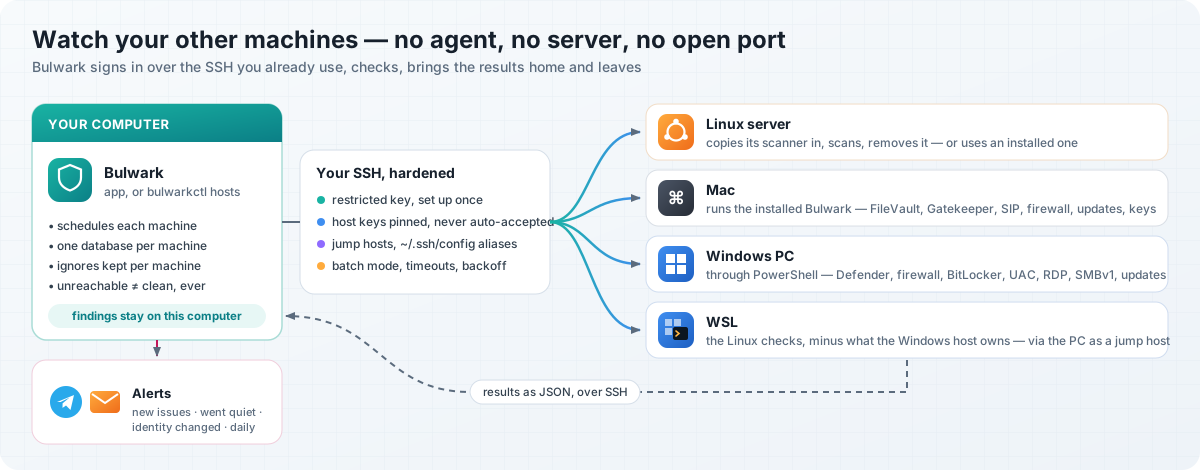
That is a deliberate choice, and it is what makes Bulwark different from fleet tools such as Wazuh:
| Bulwark | Agent-based fleet tools (e.g. Wazuh) | |
|---|---|---|
| On each monitored machine | an SSH login, then gone (on a Mac or Windows PC, an installed Bulwark that only runs during a scan) | a resident agent |
| Central infrastructure | none — the desktop app or one cron line | a manager server, an indexer, a dashboard |
| Network exposure | your existing SSH; no new port | agent ↔ manager channel |
| Who it's for | a developer or small team with a handful to a few dozen machines | a security team running hundreds or thousands |
| Results | plain-language explanation and the fix, per issue | alerts for an analyst to triage |
| Where findings live | on your computer only | on the manager |
What Bulwark deliberately does not do: real-time kernel telemetry, log shipping and correlation (SIEM), automatic response, or thousands of hosts. If you need those, you need an agent-based platform; if you have a few machines and want to know what's wrong with them and how to fix it, Bulwark is the lighter tool.
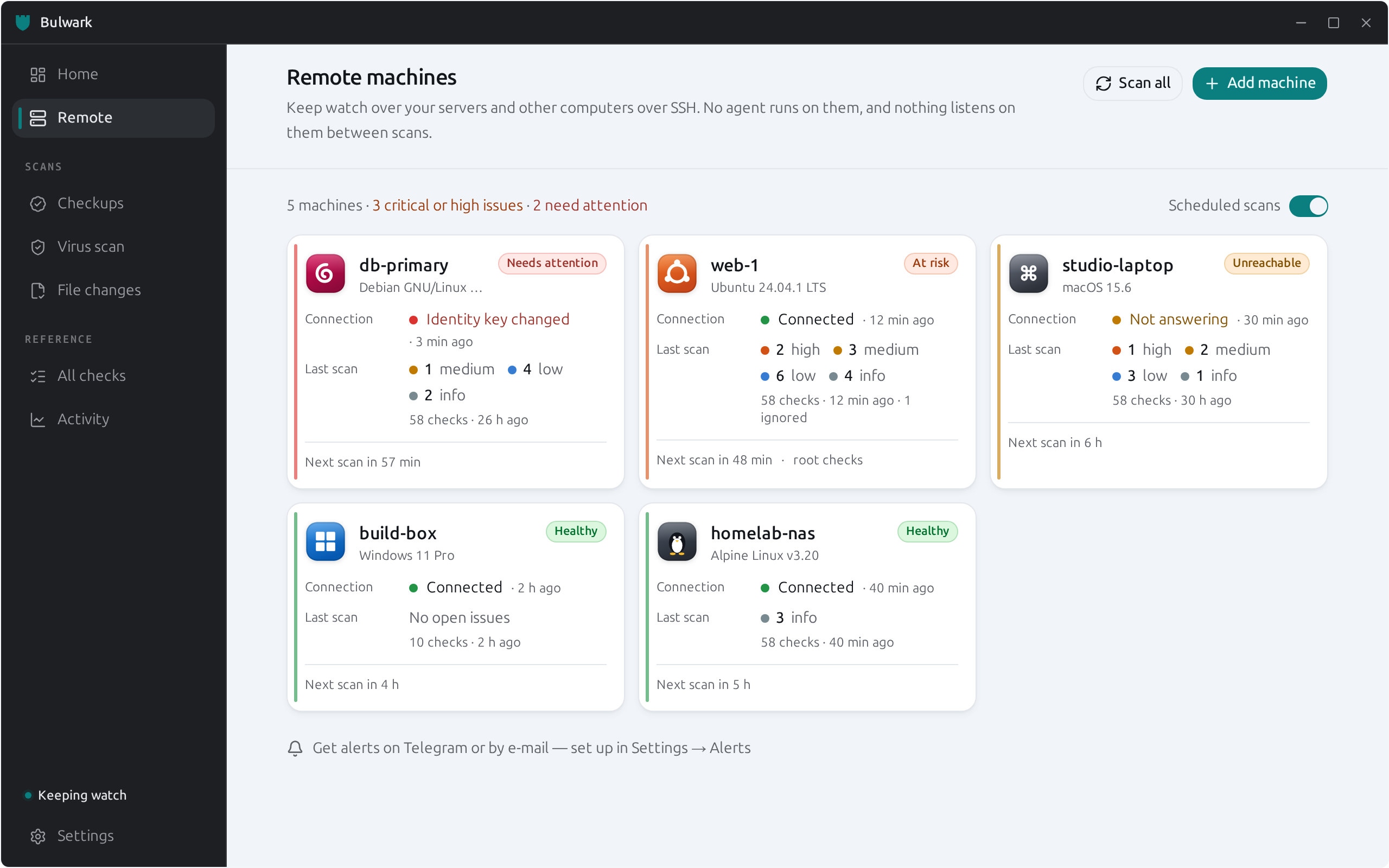
How it works
- The SSH transport is the system
ssh, so your~/.ssh/config(aliases, ports, keys, jump hosts, ProxyCommand) and your SSH agent work as-is. - If Bulwark is installed on the machine, that copy runs. If not, Bulwark copies itself and its rules into a private
mktemp -ddirectory, runs, and deletes it — after checking the machine's CPU architecture can run it. - Each machine's findings are kept in its own database on your computer. They never mix with this computer's results, and a scan of one machine can never mark another's issues as fixed.
- The desktop app and the CLI share one machine list, so you can set things up in either.
Which systems can be monitored
Support for other operating systems is added gradually, and a machine is never shown as "clean" just because Bulwark had nothing to check there.
| System | Status | How |
|---|---|---|
| Linux (any distribution) | Full rule pack | Bulwark copies itself over for each scan, or uses an installed bulwarkctl. |
| macOS | Growing: FileVault, Gatekeeper, System Integrity Protection, firewall, automatic security updates, guest account (BLWK-MAC-001…006), LaunchAgent/LaunchDaemon persistence (BLWK-PERSIST-003), and the plaintext-credential and SSH-key checks | Install Bulwark on the Mac — the app in /Applications is enough, or bulwarkctl (see below). A Linux build can't run there. |
| WSL (Linux on Windows) | The Linux rule pack, minus checks about things the Windows host owns — the WSL kernel (MAC framework, module blacklists, SysRq, kexec), its network stack (ICMP redirects, martians), auditd and console banners — which are reported as not applicable, never as passing | Add the WSL distribution's SSH address, usually with the Windows host as the jump host. |
| Windows (native) | Defender, firewall profiles, BitLocker, UAC, Remote Desktop, SMBv1, the Guest account, automatic sign-in, Windows Update age (BLWK-WIN-001…010) | Turn on Windows' OpenSSH Server and install Bulwark for Windows on the machine (see below). For the Linux side of the same PC, add its WSL as well. |
Bulwark recognises the system each time it connects and shows it on the machine's card — an Ubuntu, Debian, Fedora, Arch, macOS, Windows or WSL tile, or a plain Linux one for other distributions — so a mixed fleet reads at a glance. A machine shows a generic server tile until its first successful connection.
Every machine shows how many checks its last scan ran, so "Healthy" on a Mac (about a dozen checks) doesn't read like "Healthy" on a Linux server (sixty-odd). A machine whose system has no checks yet — a shell Bulwark doesn't recognise, or a system where nothing applies — shows Not supported yet: grey, never an alert, and re-checked once a day, so it starts scanning as soon as a Bulwark version adds support for it.
Installing on a Mac. The Bulwark app in /Applications is enough: its scanner is used directly. Otherwise Bulwark finds bulwarkctl in /usr/local/bin, /opt/homebrew/bin, ~/.local/bin or ~/.cargo/bin (a non-interactive SSH session doesn't see your shell's PATH). With Rust installed, a per-user install needs no sudo:
# on the Mac, from a checkout of the Bulwark source
cargo build --release -p bulwarkctl
install -m 0755 target/release/bulwarkctl ~/.local/bin/bulwarkctl
mkdir -p ~/.local/lib/bulwark && cp -R rules ~/.local/lib/bulwark/rules
Root-only daemon plists (/Library/LaunchDaemons/*.plist with mode 0600) are read only with root checks on; without them they are noted as unreadable, not flagged.
Monitoring a Windows machine. Two things on that PC:
- OpenSSH Server. Settings → System → Optional features → OpenSSH Server, then start the OpenSSH SSH Server service (or, in an administrator PowerShell,
Add-WindowsCapability -Online -Name OpenSSH.Server~~~~0.0.1.0; Start-Service sshd; Set-Service sshd -StartupType Automatic). - Bulwark for Windows from the download page. The desktop app includes the scanner; Bulwark looks for it where the installer puts it (
%LOCALAPPDATA%\bulwark, orProgram Files\bulwarkfor an all-users install) and on thePATH.
Bulwark talks to it through PowerShell, so it works whether the SSH server's default shell is cmd or PowerShell. Two differences from Linux and macOS: root checks aren't available over SSH on Windows yet — settings that need administrator rights (BitLocker, for one) are reported as unknown, never as passing — and Set up key access can't install a key on Windows yet. Add a key yourself: for an administrator account the public key goes in C:\ProgramData\ssh\administrators_authorized_keys, otherwise in %USERPROFILE%\.ssh\authorized_keys on that PC.
Adding a machine
In the app: Remote in the sidebar → Add machine. Enter user@host, an IP address, or pick a Host alias from your ~/.ssh/config. Bulwark then walks through the connection:
- Trust its identity. The first time, Bulwark shows the machine's host key fingerprint and the command to print the same fingerprint on the machine itself. Compare, then approve. Approved keys are stored in Bulwark's own
known_hosts; your~/.ssh/known_hostsis never modified. - Key access. If the machine doesn't accept your key, choose between:
- Set up key access (recommended) — sign in once with your password; Bulwark creates its own monitoring key and installs it with the
restrictoption. The password is used for that one sign-in and never stored. - Use a key you already have — pick it, or load it into your agent with
ssh-add.
- Set up key access (recommended) — sign in once with your password; Bulwark creates its own monitoring key and installs it with the
- Schedule. Every 15 minutes, hour, 6 hours or day. Bulwark scans immediately, then on that schedule while the app is running.
From a terminal:
bulwarkctl hosts add deploy@web-1.example.com --name web-1
bulwarkctl hosts test web-1          # step-by-step check, with the fix for whatever fails
bulwarkctl hosts trust web-1 --fingerprint SHA256:…   # after comparing on the machine
bulwarkctl hosts setup-key web-1 --password-stdin     # optional: dedicated restricted key
bulwarkctl hosts scan web-1
bulwarkctl hosts list
bulwarkctl hosts show web-1          # its open issues
Other options: --port, --identity ~/.ssh/key, --jump me@bastion (ProxyJump), --privileged (root-only checks, see below), --interval <minutes>. Change any of them later with bulwarkctl hosts set web-1 …; pause with --enabled false.
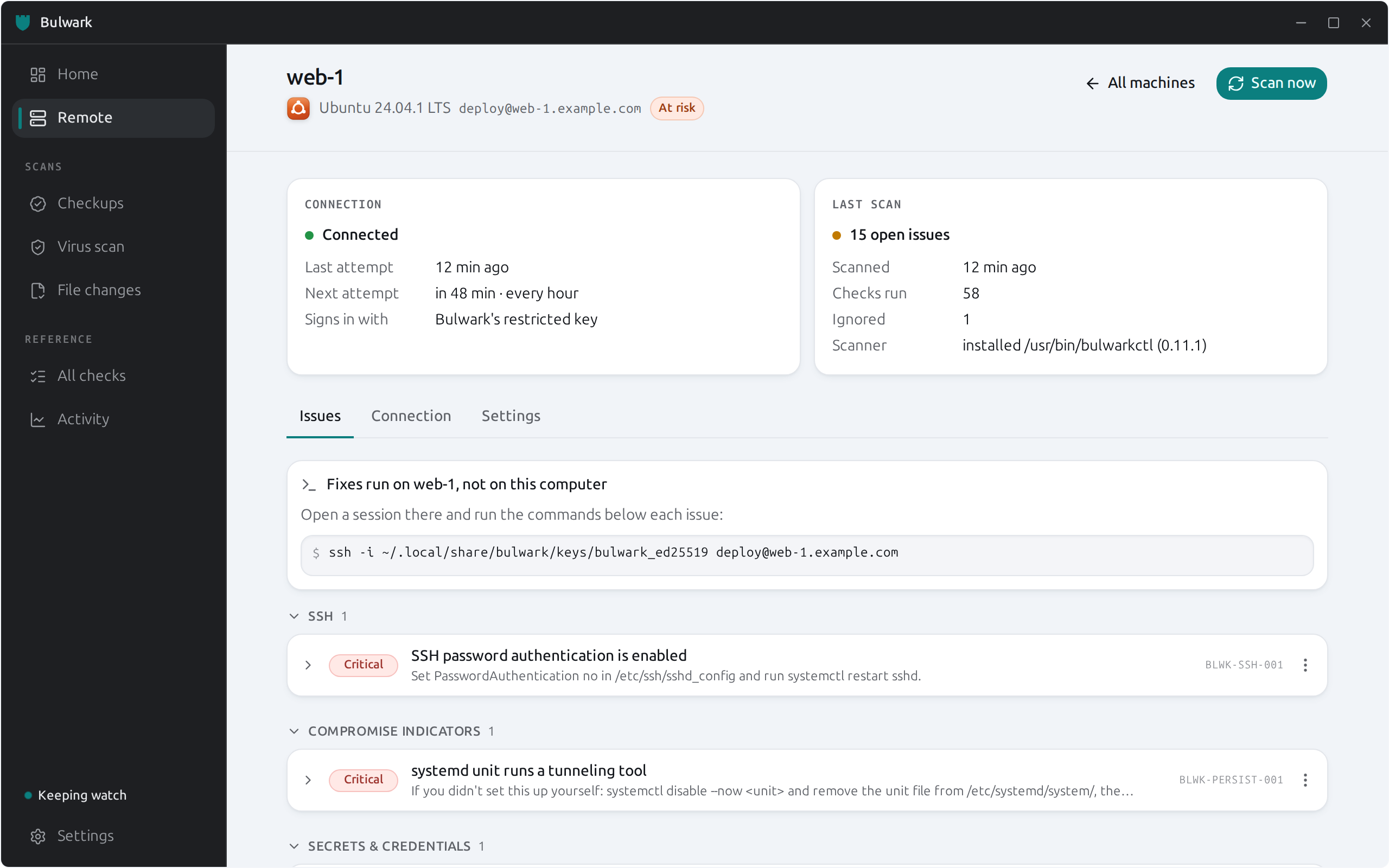
Open a machine to see its connection and its last scan side by side — a machine can answer and still have a failed scan, or be offline with a recent scan's results still worth reading — and its issues grouped by cause, the same way Home groups this computer's. Fixes run on that machine, so each issue carries the command to run there, and the page shows the ssh command to open a session.
Monitoring from a Mac or a Windows computer
The app and bulwarkctl on macOS and Windows monitor machines the same way, through the ssh those systems already ship (Windows 10 and 11 include OpenSSH). One difference: a Linux computer can copy its own scanner to a Linux machine with the same processor for each scan, but a Mac or Windows build can't run on Linux — so from a Mac or Windows computer, install Bulwark on each machine you monitor (on Ubuntu, sudo add-apt-repository ppa:vietanhng/bulwark && sudo apt install bulwarkctl). Check connection says so in its Scanner on the machine step, with the install command, before any scan is attempted. The same applies to monitoring a Mac from Linux: install bulwarkctl on the Mac (see above).
Connection security
Bulwark is flexible about how you connect and strict about whom it connects to. Every check under Connection → Connection security says how a setup compares with good practice, with the safer option one click (or one command) away.
| Always enforced | Why |
|---|---|
| Host keys are verified. Unknown keys are never accepted automatically; a changed key stops scans and raises an alert. | A changed key is what an intercepted connection looks like. It is also what a reinstall looks like — only a person can tell which. After confirming a reinstall, replace the stored key (Connection → Replace the stored key, or hosts trust … --replace). |
No prompts in the background. Scheduled scans run with BatchMode=yes and hard timeouts. | A scan can never hang on a password or passphrase prompt nobody will answer. |
| No credentials offered to an unverified machine. Reading a host key for approval turns every authentication method off. | Not even a public key is shown to a machine before you've confirmed it. |
Addresses can't be ssh options. An address, key path or jump host starting with - is refused, and free-form -o options can't be stored. | Options such as ProxyCommand run local commands; a background scheduler must never replay one. Put advanced settings in ~/.ssh/config and use its alias. |
| A machine is recognised by its hostname. If an address later answers as a different machine, its scan is refused and kept out of the history. | A moved DHCP lease or repointed DNS record must not merge two machines' results. Accept a deliberate rename with Accept new identity (hosts set … --accept-identity). |
| Recommended | How |
|---|---|
| A dedicated, restricted key | Set up key access / hosts setup-key. The key is installed as restrict ssh-ed25519 …: it can run commands, but not forward ports, reach your agent, or open a terminal. Revoke it by deleting that one line from the machine's authorized_keys. |
| A regular account, not root | Bulwark warns when it signs in as root. |
| sudo limited to the scanner for root-only checks | With Bulwark installed on the machine: <user> ALL=(root) NOPASSWD: /usr/bin/bulwarkctl scan --json --no-persist --privileged in /etc/sudoers.d/bulwark — exactly that command, never scan *, which would also allow options that run other commands as root. |
| Bulwark installed on the machine | Faster scans, updated with the system, and the only way to scope sudo to the scanner. |
Root-only checks
Some checks (sudoers, shadow-file permissions, the firewall) need root. Turn Include checks that need root on for a machine and Bulwark runs its scan through sudo -n there. Unlike on your own computer — where root checks need a password prompt — this can run unattended, but only when sudo on that machine doesn't ask for a password. The connection check tells you whether it does.
Scheduling, and what each state means
- A machine Bulwark couldn't reach is never shown as clean. Its last results stay visible, marked as out of date.
- A machine that stops answering is retried less often — the interval doubles per failure, up to 6 hours — so a switched-off laptop doesn't cost a connection attempt every few minutes. Failures that need a person (a refused key, a changed host key) are not backed off.
- At most three machines are scanned at once, and never the same machine twice at a time.
Without the app: cron or a systemd timer
# every 5 minutes, scan whichever machines are due; print only what's new or failing
*/5 * * * *  bulwarkctl hosts scan --due --quiet
# a daily summary to Telegram / e-mail
0 8 * * *    bulwarkctl notify report
Exit codes: 0 clean, 1 medium/high issues open, 2 critical issues open, 3 at least one machine couldn't be scanned.
Alerts on Telegram or by e-mail
Settings → Alerts (or bulwarkctl notify …). Nothing is sent until you set it up. Alerts carry machine names, severities and issue titles — never file contents or secrets — and pass through Telegram's or your mail provider's servers.
| Alert | When |
|---|---|
| New issues | A scan opened issues at or above your chosen severity (default: medium). |
| Identity / host key changed | Immediately, once. |
| Unreachable | After the third failed attempt in a row — not on every blip. |
| Back online | When an unreachable machine answers again. |
| Needs attention | Once, when a failure that needs a person starts. |
| Daily summary | Optional: every machine's state, once a day. |
Several alerts from one round of scans arrive as one message.
Telegram: create a bot with @BotFather (/newbot), paste its token, send the bot any message, then choose Find my chat. From a terminal:
bulwarkctl notify telegram          # prompts for the token, finds your chat
bulwarkctl notify test
E-mail: any SMTP server. smtps:// (TLS) or smtp://…:587 (STARTTLS, required — Bulwark never falls back to sending in the clear); unencrypted delivery is allowed only to a relay on the same computer (smtp://localhost). For Gmail and similar, use an app password.
bulwarkctl notify email --smtp-url smtps://smtp.example.com:465 \
  --from bulwark@example.com --to you@example.com --username bulwark@example.com
How secrets are kept: the bot token and SMTP password live in notify-secrets.json (mode 0600) next to the database — not in the database itself, so sharing or backing up the database never leaks them. They reach curl through its standard input, never its command line, so they don't show up in ps.
When something goes wrong
Every failure comes with a plain-language reason and the next step; these are the common ones.
| You see | What to do |
|---|---|
| This machine hasn't been trusted yet | Compare and approve its fingerprint (Connection tab). |
| The machine's identity key has changed | Confirm with whoever manages the machine whether it was reinstalled. Only then replace the stored key. If it wasn't reinstalled, don't connect. |
| The machine didn't accept your SSH key | Set up key access with a password once, or load your key with ssh-add. With many keys in your agent, choose the right key file — Bulwark then offers only that one. |
| Root checks need passwordless sudo | Add the scoped sudoers rule shown in the connection check, or turn root checks off. |
| Bulwark can't run on this machine's processor | Install Bulwark on the machine; an installed copy always runs natively. |
| This address now belongs to a different machine | Check where the address points. If the machine was renamed on purpose, Accept new identity. |
| Bulwark can't scan this operating system yet | It's a Windows SSH shell. Monitor the machine's WSL instead (see Which systems can be monitored). |
| No checks for this system yet | The scan ran, but nothing applies there yet. Nothing to fix; Bulwark checks back daily. |
| The machine isn't answering | Bulwark keeps retrying, less often. Check the machine is on and reachable. |
Inside the Flatpak
The Flatpak can monitor machines through the host's ssh (it uses the same host-command bridge as its privileged scans), but it can't copy itself to a machine that doesn't have Bulwark: install bulwarkctl there instead. The .deb, .rpm and AppImage have no such limit.